Preprocess tab (Stage-1)
The Preprocess tab is the dedicated workspace for Stage-1 of the GeoPrior pipeline. Stage-1 prepares everything Stage-2 needs: normalized tensors, scalers, and a manifest that records what was built and how.
This tab is UI-only: it builds widgets, binds options to the configuration store, and displays Stage-1 artifacts. The actual Stage-1 execution is handled by the main controller.
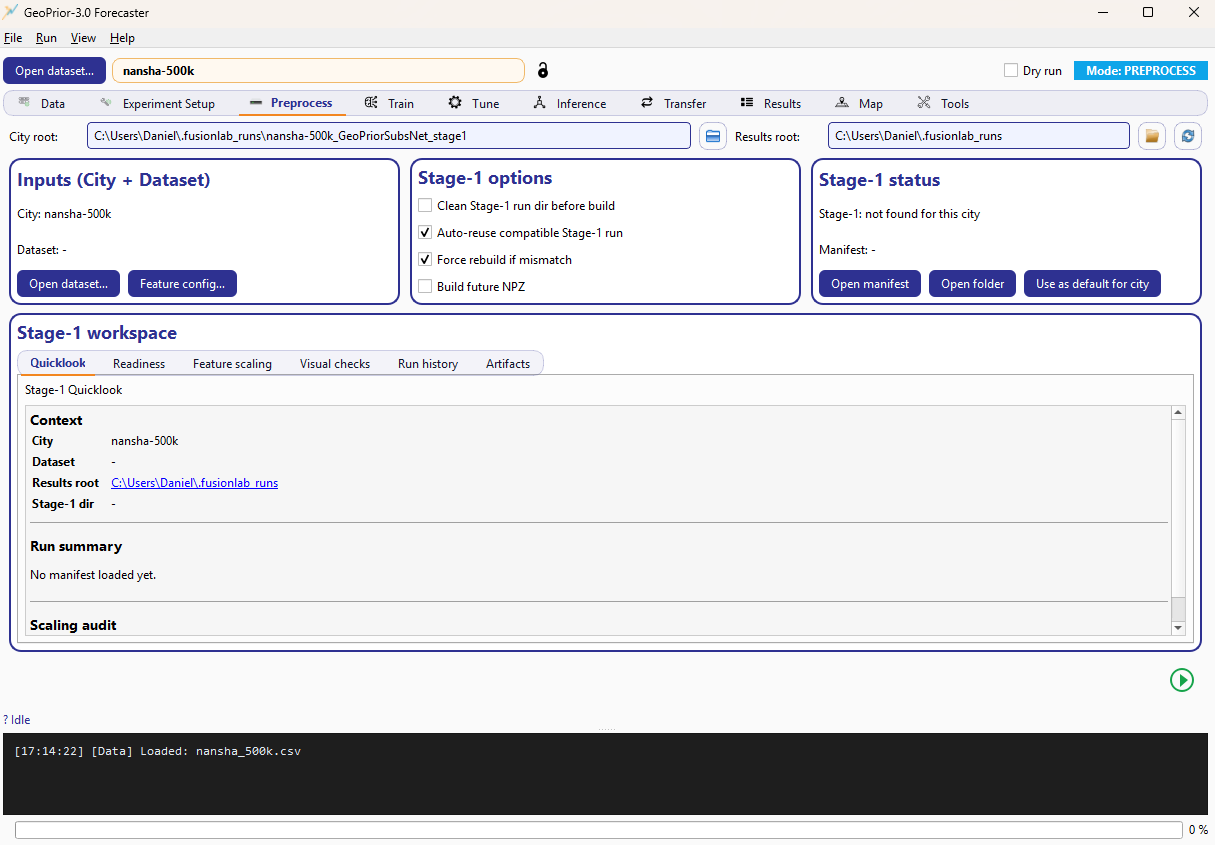
Preprocess tab layout: paths row, three top cards (Inputs/Options/Status), the Stage-1 workspace, and the Run button.
What you do here
You typically use this tab to:
verify the active city + dataset that will be preprocessed,
decide whether to reuse an existing compatible Stage-1 run,
run Stage-1 and then inspect the resulting manifest, scaling audit, and diagnostics in the workspace.
The top paths row
At the very top, the tab shows two read-only path fields:
City root: the folder where Stage-1 artifacts for the active city/model live.
Results root: the global results directory the GUI writes under.
The row also includes icon-only actions:
Open city folder (disabled until the folder exists),
Browse results root…,
Refresh Stage-1 status. :contentReference[oaicite:1]{index=1}
City root is computed as:
<results_root>/<city>_<model>_stage1
so each city/model gets a predictable Stage-1 home.
Inputs (City + Dataset)
The Inputs (City + Dataset) card is a quick confirmation of what Stage-1 will operate on. It displays:
City: <name>Dataset: <path>
and provides two actions:
Open dataset… (select or change the dataset),
Feature config… (review feature roles before running).
Stage-1 options
The Stage-1 options card controls reuse/build behavior. Each checkbox is stored in the central configuration store and is therefore saved alongside the run outputs. :contentReference[oaicite:4]{index=4}
The options are:
Clean Stage-1 run dir before build → clears the Stage-1 run directory before rebuilding (store key:
clean_stage1_dir).Auto-reuse compatible Stage-1 run → if a prior Stage-1 run is compatible with the current configuration, reuse it instead of rebuilding (store key:
stage1_auto_reuse_if_match).Force rebuild if mismatch → if an existing Stage-1 run is found but its configuration does not match the current setup, rebuild automatically (store key:
stage1_force_rebuild_if_mismatch).Build future NPZ → additionally produce the “future-known” NPZ payloads used by downstream forecasting workflows (store key:
build_future_npz).
Stage-1 status (what “OK/MATCH” means)
The Stage-1 status card summarizes what the GUI currently detects for the active city:
a state line (for example:
OK / MATCHorINCOMPLETE / MISMATCH),a manifest path line (
Manifest: <path>),action buttons to open artifacts.
When you press Refresh (or when the tab updates), the tab discovers Stage-1 runs and selects the best candidate. It reports:
OK vs INCOMPLETE depending on whether the run looks complete,
MATCH vs MISMATCH depending on whether the run’s configuration matches the current Stage-1 configuration snapshot,
plus
n_trainandn_valcounts.
If a usable run is found, the tab also loads:
the manifest JSON (from the detected manifest path),
the scaling audit JSON (
stage1_scaling_audit.json) when present,
and pushes them into the workspace panels.
The action buttons are enabled only when their targets exist:
Open manifest: opens the manifest file,
Open folder: opens the Stage-1 run directory,
Use as default for city: marks this Stage-1 run as the preferred one for the active city in the GUI.
Stage-1 workspace (inspection and diagnostics)
The large Stage-1 workspace area hosts the dedicated Stage-1 inspector (Stage1Workspace). :contentReference[oaicite:18]{index=18}
This workspace is where you review what Stage-1 produced and whether it is ready for Stage-2. It is populated using a shared context containing the city, dataset path, results root, active Stage-1 directory, and model name.
In v3.2, the workspace exposes multiple subpanels (tabs), including:
Quicklook: compact context + run summary preview,
Readiness: compatibility and “can we reuse?” checks,
Feature scaling: scaling audit and feature normalization summaries,
Visual checks: quick diagnostic plots for sanity checks,
Run history: recently detected Stage-1 runs for the city,
Artifacts: direct links to files produced by Stage-1.
Run Stage-1 preprocessing
At the bottom-right, the tab provides the primary action:
Run Stage-1 preprocessing (the “play” run button).
Pressing it triggers the Stage-1 job using the current store-backed configuration (including the Stage-1 options above), and progress/log output is streamed to the GUI log panel.
Note
If you switch cities or change setup parameters that affect Stage-1, always press Refresh Stage-1 status to confirm whether the current Stage-1 run is still a MATCH, or whether a rebuild is required.